
Filing Your Case with the European Court of Human Rights (ECtHR)
🟦 For victims, families, or helpers
(After completing your N208 Habeas Corpus application)
Once you have created your N208 Habeas Corpus application in the UK court system, the next step is to inform the European Court of Human Rights (ECtHR) that a serious violation of rights may be taking place.
This step is used when:
- a child has been removed unlawfully
- social services, police, or courts are refusing to act
- there is evidence of falsified records, missing children, or unsafe placements
- domestic remedies in the UK are failing or too slow
- urgent protection is needed to prevent irreversible harm
Submitting a case to the ECtHR ensures that an independent international authority is notified and can intervene when the UK system is not protecting the child.
ECtHR gives a case number when they have:
- A name
- An address
- A signed statement
- A completed application uploaded
- At least ONE document attached
- It must reach them successfully through the portal (Rule 39 site)
That’s all.
You don’t need:
- fancy formatting
- legal arguments
- a perfect PDF
- scanned documents
- lawyers
- bundles
- perfect English
NONE of that matters to get a number.
They just need a file and a form submitted through the upload to get the number
Many people on apple have expressed difficulty in obtaining their case files from email on the Apple device
⭐ STEP 1 — EXACTLY what to tap to find the attachment of your case files
How to locate and upload your files on Apple Device or Phone (click me).
1. Open the email
2. Scroll down to find the attachment
3. Tap the attachment ONCE
It will open on the screen.
This is where EVERYONE gets stuck next — they think “open” means “saved.”
But on iPhone, it is NOT saved.
⭐ STEP 2 — Tell them how to actually SAVE the file
This is the step they never guess:
1. While the file is open, tap the share button
(it’s a small square with an arrow pointing up)
2. A menu appears
Scroll the menu upwards if needed.
3. Tap “Save to Files”
THIS IS THE SECRET.
If they don’t press Save to Files, the upload system CANNOT FIND the file.
4. Tap “On My iPhone”
NOT iCloud
NOT Recently Deleted
NOT Downloads
NOT anywhere else
5. Tap Save
Now the case file is really saved.
⭐ STEP 3 — Explain exactly how to upload it to any website
Tell them:
1. Go to the upload page
2. Tap “Choose File” or “Upload”
3. Tap Browse
(if they see “Photo Library,” tell them to ignore that)
4. Tap On My iPhone
(THIS is where the file went)
5. Tap the file
6. Upload will now work
Done.
How to locate and upload files on an Android Phone or computer (click me).
1. Open the email
2. Scroll down to the attachment
3. Tap the attachment ONCE
They should see a little download icon (↓) or “Download” button.
⭐ STEP 2 — Download the attachment properly
Android makes this easy.
1. Tap Download
The file will save automatically.
2. It usually goes to:
📁 Files → Downloads
(or My Files → Downloads on Samsung)
This is MUCH easier than iPhone.
⭐ STEP 3 — Help them find the downloaded file
Tell them to:
1. Open the Files app
(This might be called “Files,” “My Files,” or “File Manager.”)
2. Tap Downloads
Here they will see:
- PDFs
- DOCX
- Images
- Letters
- Evidence
- Court papers
Everything they downloaded.
If the file isn’t there, it will be in:
📁 Files → Recent
⭐ STEP 4 — Uploading the file to a website
This is where people usually panic — but Android makes it simple.
Tell them:
1. Go to the website that wants the upload
2. Tap “Choose File” or “Upload”
3. A menu appears
Choose Files or Documents
(NEVER choose “Photos” unless uploading a picture)
4. Tap Downloads
5. Tap the file you want
6. Upload completes
Done.
⭐ STEP 5 — If they need to move or rename files
Tell them to:
1. Open Files
2. Long-press the file
3. Choose Move or Rename
4. Put it into a folder you create, such as:
📁 Court
📁 Police
📁 Social Services
📁 Medical
📁 Legal
📁 Housing
📁 Evidence
Android lets them organise everything.
⭐ STEP 6 — If they can’t open PDFs or DOCX
Tell them to install:
- Google PDF Viewer (free)
- Microsoft Word (free)
These open 99% of files.
⭐ STEP 7 — If they are using Gmail
Gmail hides the downloads unless you guide them:
1. Tap the attachment
2. Tap the download icon
3. Tap the three dots → “Download again”
4. File appears in Downloads
⭐ Android Summary (simple version to tell people)
“Open the email → tap the attachment → tap Download → open Files → open Downloads → upload from there.”
That’s all they need.
Since 2022 the Court allows electronic filing via its secure eComms system, but you must first create a formal application or https://www.echr.coe.int/ urgent request.
Here’s the process:
Sign into website Sign in to the ECHR by visiting this link https://r39.echr.coe.int/
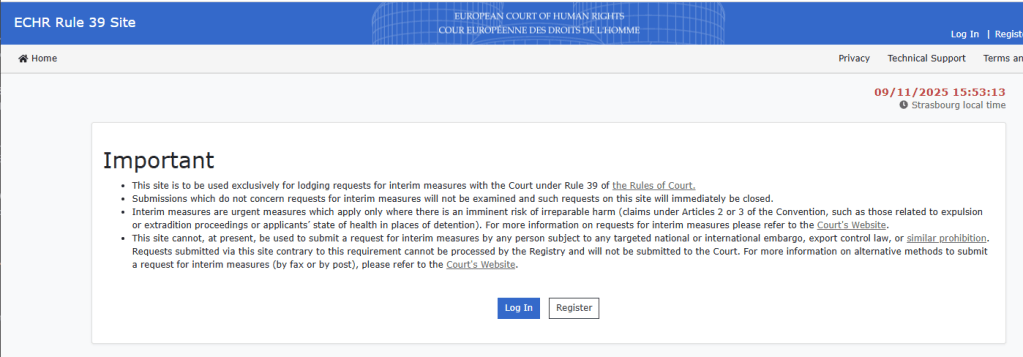
Press Login
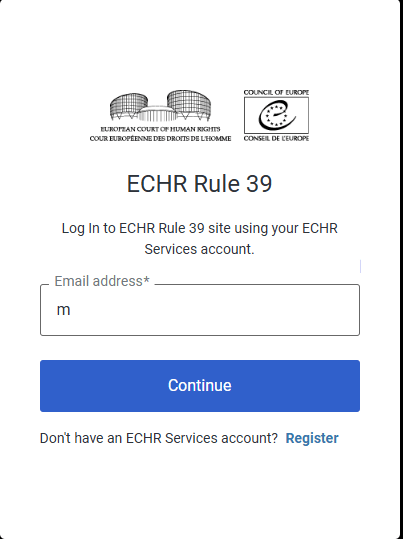
You need to register it will provide details of the authenticator you can use when you look in it will ask you to open the app and download it to your mobile device and will the provide the number the authenticator so that you can place this in the next box.
On Apple Or Android with no computer you may have to press Enter manually

On Apple Or Android with no computer you may have to press Enter manually
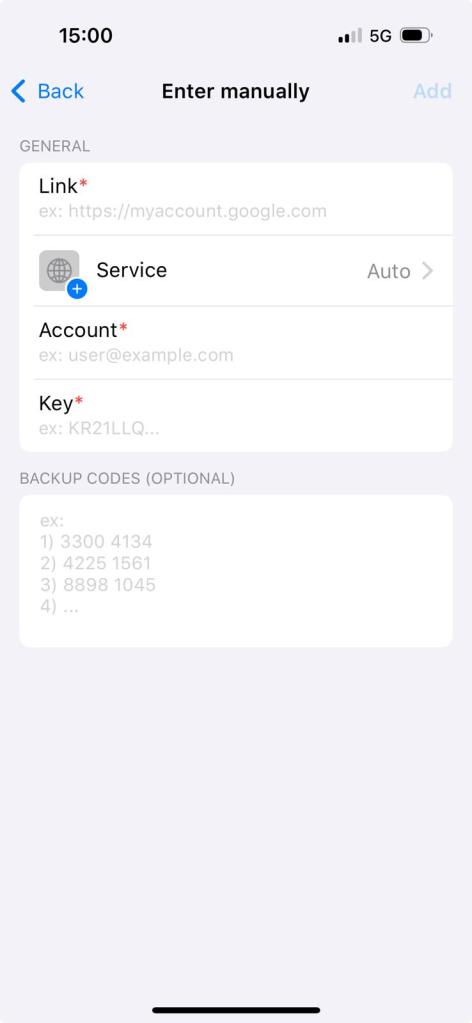
With this screen you need to in enter manually type or copy https://r39.echr.coe.int/ in the Account put your email in the Key put your password and press Add You may be asked to verify email.
⭐ HOW TO USE YOUR CASE NUMBER + AUTHENTICATOR CODE (SMARTPHONE ONLY)
This is the CORRECT sequence people must follow:
How to enter the identity Code (Click Me)
✅ 1. Get the Case Number First
Once you submit anything to ECtHR, the system gives you:
A case number.
This is your key.
You need this number EVERY time you log in.
✅ 2. Go to the Login Page
Enter:
- your email
- your password
- your case number (paste it into the box)
This proves who you are.
✅ 3. BEFORE YOU PRESS “CONFIRM”
Stop.
Do not press confirm yet.
Because the site will ask for an authenticator code, and that code:
⭐ Only stays valid for 30 seconds
⭐ Changes automatically
⭐ MUST match the code on your phone
⭐ MUST be the newest code
So the TIMING matters.
✅ 4. Switch to the Authenticator App
Open your authenticator app (Microsoft Authenticator is easiest).
You will see a 6-digit code.
BUT — and this is where everyone goes wrong —
the code may be OLD already.
So check the timer next to it.
⭐ IMPORTANT RULE:
Make sure the timer is almost full.
Use the NEW code, not the one about to expire.
If the bar is red or low → WAIT.
When it resets → use the new code.
✅ 5. Copy or Memorise the Code
The code lasts 30 seconds.
You must use it straight away.
✅ 6. Switch back to the ECtHR page
Paste or type the 6-digit code into the box.
DO NOT GET DISTRACTED.
DO NOT LET THE CODE EXPIRE.
If the code expires →
you must go back to the authenticator app and get a fresh one.
✅ 7. Click “CONFIRM” IMMEDIATELY
Do not wait.
Do not switch apps.
Do not answer a call.
Do not look at a message.
⏳ You have about 10–25 seconds before the code dies.
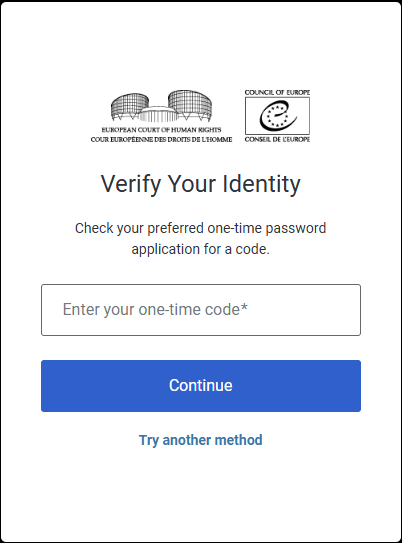
Once you have Provided your entity from the downloaded app on your mobile device
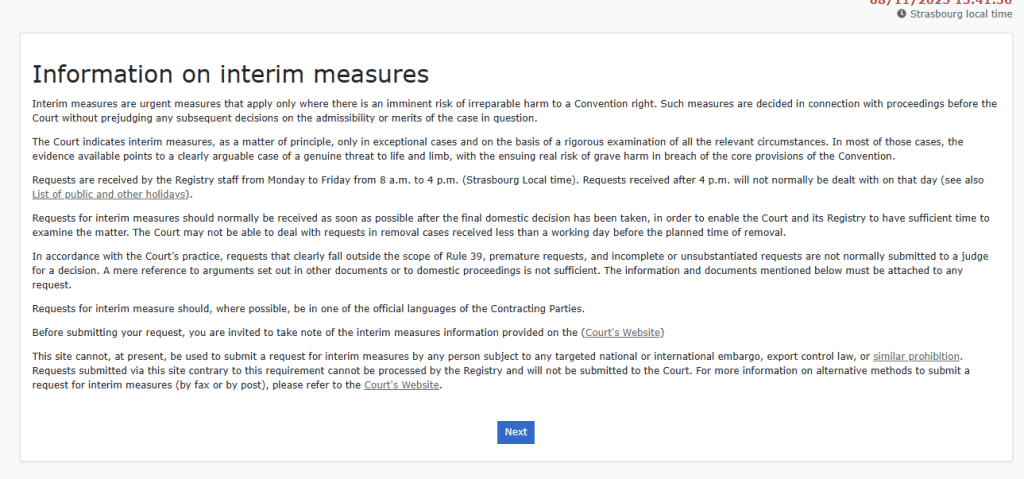
Press Next

Press Next
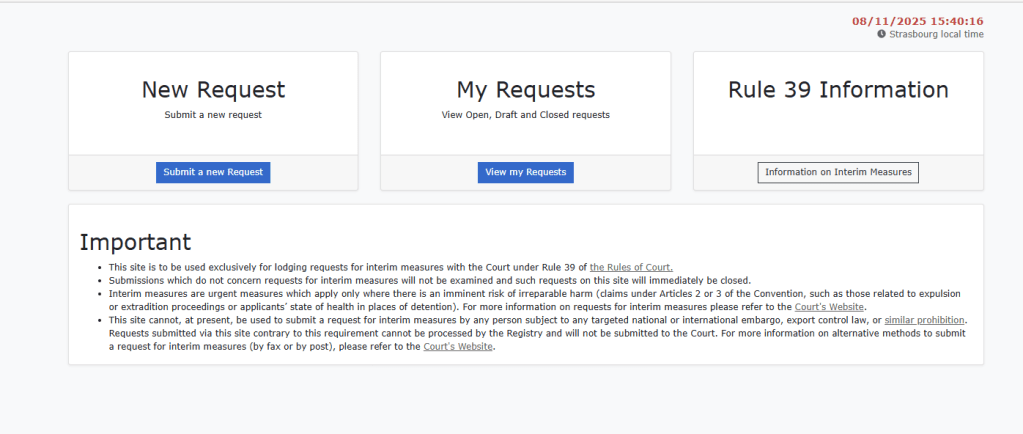
Press Submit a Request

Here is what each field normally requires on the ECtHR Rule 39 Interim Measures request form (the draft page you showed).
This is not legal advice, just an explanation of what goes in each box.
✅ What to enter in each section
1. Request Title
A short, clear description of the emergency request.
Example:
“Request for Interim Measure Under Rule 39 – Protection of Child / Urgent Return / Prevention of Irreversible Harm”
2. Applicant First Name(s) / Applicant Last Name(s)
Your full legal name as the applicant.
If you are submitting on behalf of a child, the applicant can still be you, acting as parent / guardian / representative.
3. Current Address of the Applicant
Your current residential address.
(Where the Court can send correspondence.)
4. Applicant Birth Date
Your date of birth in dd/mm/yyyy format.
5. Nationality(ies)
Your nationality (e.g. British).
6. Other Applicants
Click Add/Edit Other Applicants if the application includes:
- a child
- another parent
- a guardian
- multiple family members
For a child, you normally enter:
Child’s full legal name, DOB, nationality, and relationship (“minor child represented by [your name]”).
7. Representative Details
If you have no lawyer, write:
“N/A – self-represented”
(or “not applicable”)
If you have a solicitor, enter:
- their full name
- address
- capacity (“legal representative”)
- phone/email
8. State(s) against which the request is lodged
Select the country whose authorities are responsible for the alleged violation.
For UK cases, choose:
“United Kingdom”
If actions involve multiple jurisdictions, normally you still enter only the State you hold responsible before the Court.
9. Attachments
You must upload at least one document, usually one of:
- the judgment or order causing the risk
- evidence showing immediate danger
- medical letters
- social services letters
- police reports
- birth certificate
- proof the child is missing
- any document showing “irreversible harm” risk
Examples:
- Missing child reports
- Police letters
- DNA evidence
- Social services documents
- Court orders
- Medical risk letters
- Evidence of trafficking risk
- Proof the State is failing to act
A Rule 39 request cannot be submitted without an attachment.
✅ Summary of What to Enter
| Field | What Goes Here |
|---|---|
| Request Title | Short description of the emergency request |
| Applicant Names | Your name |
| Address | Your current address |
| DOB | Your DOB |
| Nationality | Your nationality |
| Other Applicants | Add the child / others |
| Representative | “N/A – self-represented” if no lawyer |
| State | United Kingdom |
| Attachments | At least one supporting document |
Press Safe Draft to continue it or submit it, once submitted make a permanent reference to the number of the item in the list you will require this.
if all else fails write to :
Send to:
The Registrar
European Court of Human Rights
Council of Europe
F-67075 Strasbourg-Cedex
France
Fax: +33 (0)3 88 41 39 00


 thestealingofemily.co.uk
Leave a comment